


- Which keys are pressed
- Where the mouse clicks
- The exact steps that cause the issue
What’s Keycastr?
- Keyboard inputs on screen
- Mouse click events
- Bug reproduction videos
- Feature demos
- Code walkthroughs
- Client support tutorials
How to install Keycastr
- Run the command below to install the app
brew install --cask keycastr
- Launch Keycastr from the Applications folder or Launchpad
- Grant the relevant permission on Mac
- Restart the app so the permissions take effect
- Go to Display tab and customize the settings to your preference
My Recommended Settings


- Selected Visualizer: Set to “Svelte”
- Display Mouse Events: Set to “Mouse Pointer”
Final Thoughts
- Work with remote teammates
- Review pull requests
- Record technical demos or tutorials
Reference


 YouTubeDisplay Keystrokes on MacBook Screen During Screen Recording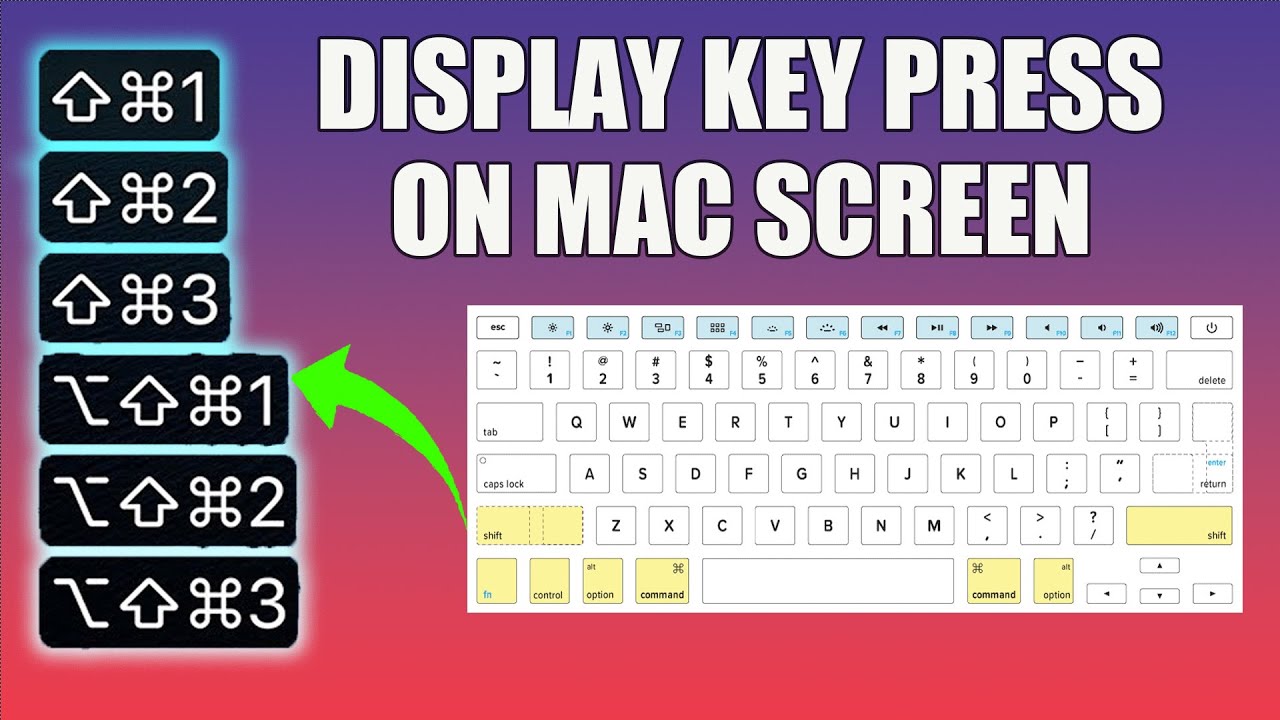
Display Keystrokes on MacBook Screen During Screen Recording
In this step-by-step tutorial, you'll discover a simple and FREE method to display keystrokes and key presses on your Mac screen which is essential for those who record screen or do tutorials. Whether you're creating tutorials, live streaming, or just want to highlight your keyboard inputs, this is the ultimate solution. 🔗 Links and Resources Mentioned in the Video: https://github.com/keycastr/keycastr/releases 🔔 If you find this video helpful, please consider liking, subscribing, and sharing it with your friends. Your support helps us create more useful content like this. 📌 Timestamps: 0:00 – Keystrokes/Key Press Introduction 0:41 - Downloading the Keystroke Display Software 1:01 - Installation and Configuration 1:23 – Understanding Keycastr Extension 1:29 – Macbook Privacy Setting for Keystrokes/Keycastr 2:15 – Finding Keycastr in the Mac Dock and Doing All Required Settings 4:42 – Tricks to bring Keystrokes to the Centre of Screen 5:45 - Conclusion 🔔 🔔 🔔 🔔 #MacTips #KeystrokesOnScreen #KeyPressDisplay 🔔 🔔 🔔 🔔 Keywords and some FAQs: • display keystrokes on screen mac • show keystrokes on screen mac • key press on screen mac • how to see what keys you're pressing on mac • mac screen keyboard • keyboard viewer mac • How to Show Keystrokes on a Mac: Free and Easy Methods • Mac Keystroke Visualization: Tips and Tools • Enhance Mac Productivity with Keystroke Display while screen recording • Keyboard Input Visualization on a Mac druing screen record: Step-by-Step Guide • Mastering Mac Shortcuts: Displaying Key Presses • Accessibility Features for Key Press Display on macOS • "Custom Keystroke Overlays for Mac Applications • Mac Key Press Highlighting: A Visual Guide" • Efficient Typing: How to Highlight Keystrokes on Mac • Mac Key Press Display for Better Tutorials and Presentations 🔔 🔔 🔔 🔔 Thank you for watching, and don't forget to hit the like button, subscribe, and ring the notification bell for more Mac-related tutorials and tips. If you have any questions or suggestions, please leave them in the comments below. We value your feedback! ======= 𝙄𝙛 𝙮𝙤𝙪 𝙖𝙧𝙚 𝙞𝙣𝙩𝙚𝙧𝙚𝙨𝙩𝙚𝙙 𝙞𝙣 𝙩𝙧𝙖𝙫𝙚𝙡, 𝙚𝙨𝙥𝙚𝙘𝙞𝙖𝙡𝙡𝙮 𝙩𝙤 𝘾𝙝𝙞𝙣𝙖, 𝙥𝙡𝙚𝙖𝙨𝙚 𝙧𝙚𝙛𝙚𝙧 𝙩𝙤 𝙩𝙝𝙞𝙨 𝙡𝙞𝙣𝙠. www.youtube.com/@TravelholicAttique 𝐒𝐨𝐜𝐢𝐚𝐥 𝐌𝐞𝐝𝐢𝐚 𝐀𝐜𝐜𝐨𝐮𝐧𝐭𝐬 👉 https://www.instagram.com/bukharijlu/ 👉 https://twitter.com/attiquenaqvi
YouTube